DESIGN STUDY 05 · 構成とデザインの検討用トップ / 商品ページ / 設計メモ
helocdesign tools
Media Wall original iconMEDIA WALL / LIVE PLAYBACK

Built by a working video operator, for live event work.

All your media.
Ready for
the next cue.

Video, audio, images, and PDFs.
Together in one playback workspace.

Launch price · One-time purchase · 1 Mac
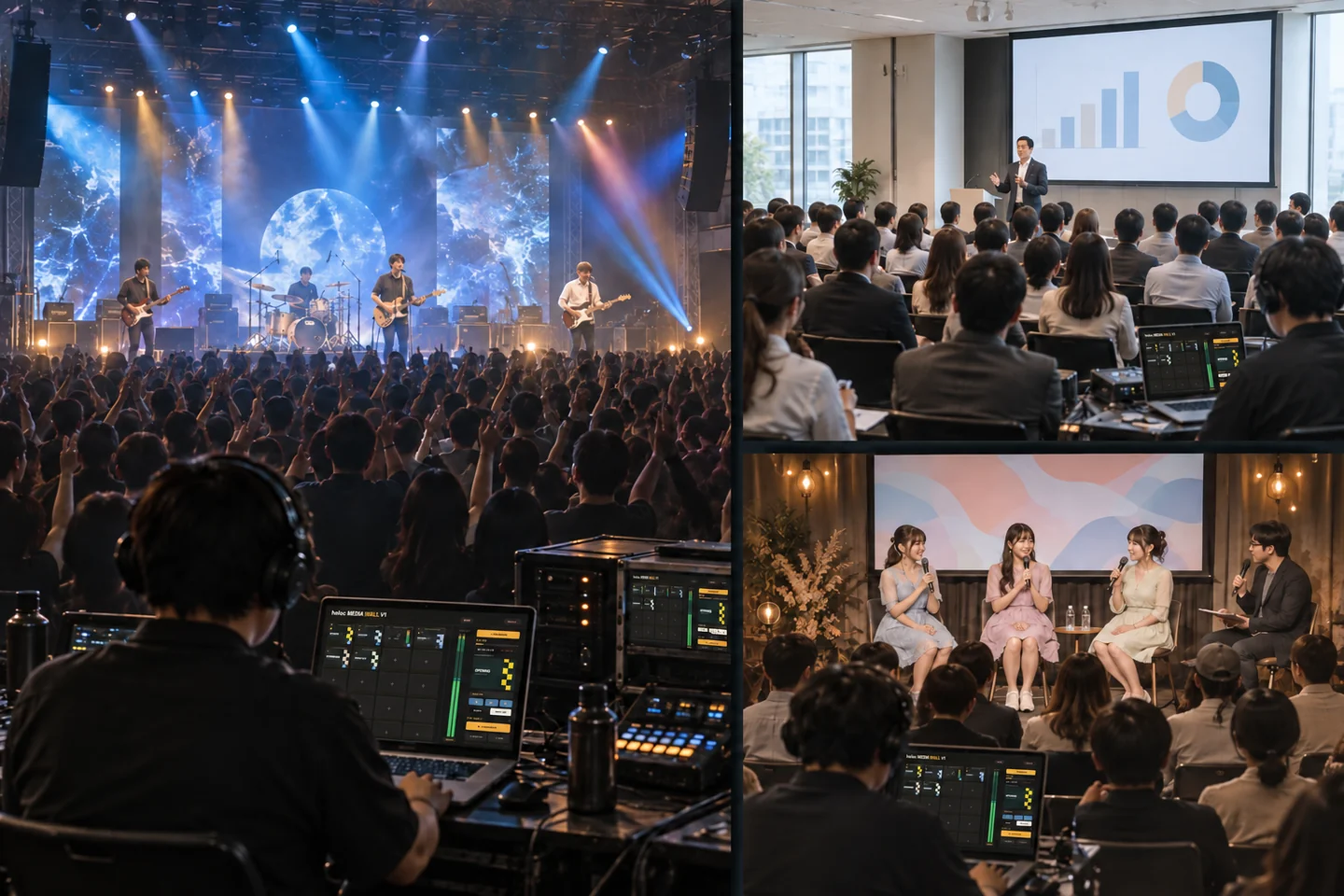
Illustrative collage: a large music concert, a medium-sized business seminar, and a small idol talk event, each with a media operator
BEHIND EVERY SHOW.Large stages. Small spaces.
Live music. Business seminars. Intimate talk events.AI-generated venue imagery · Usage illustration
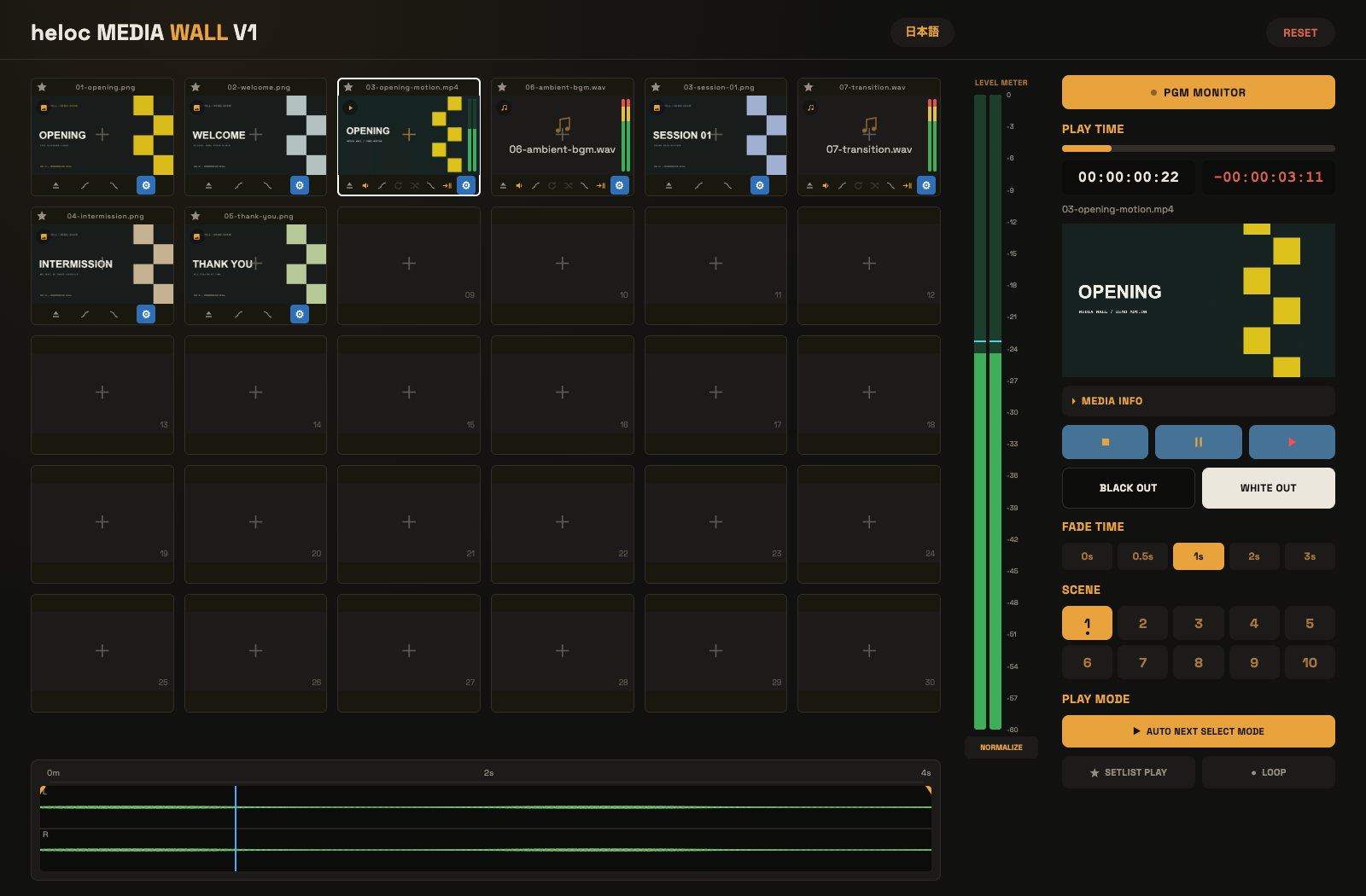
01 / OPERATOR SCREENMEDIA WALL
Actual Media Wall workspace playing a demo video with audio and still-image tilesView actual screen ↗
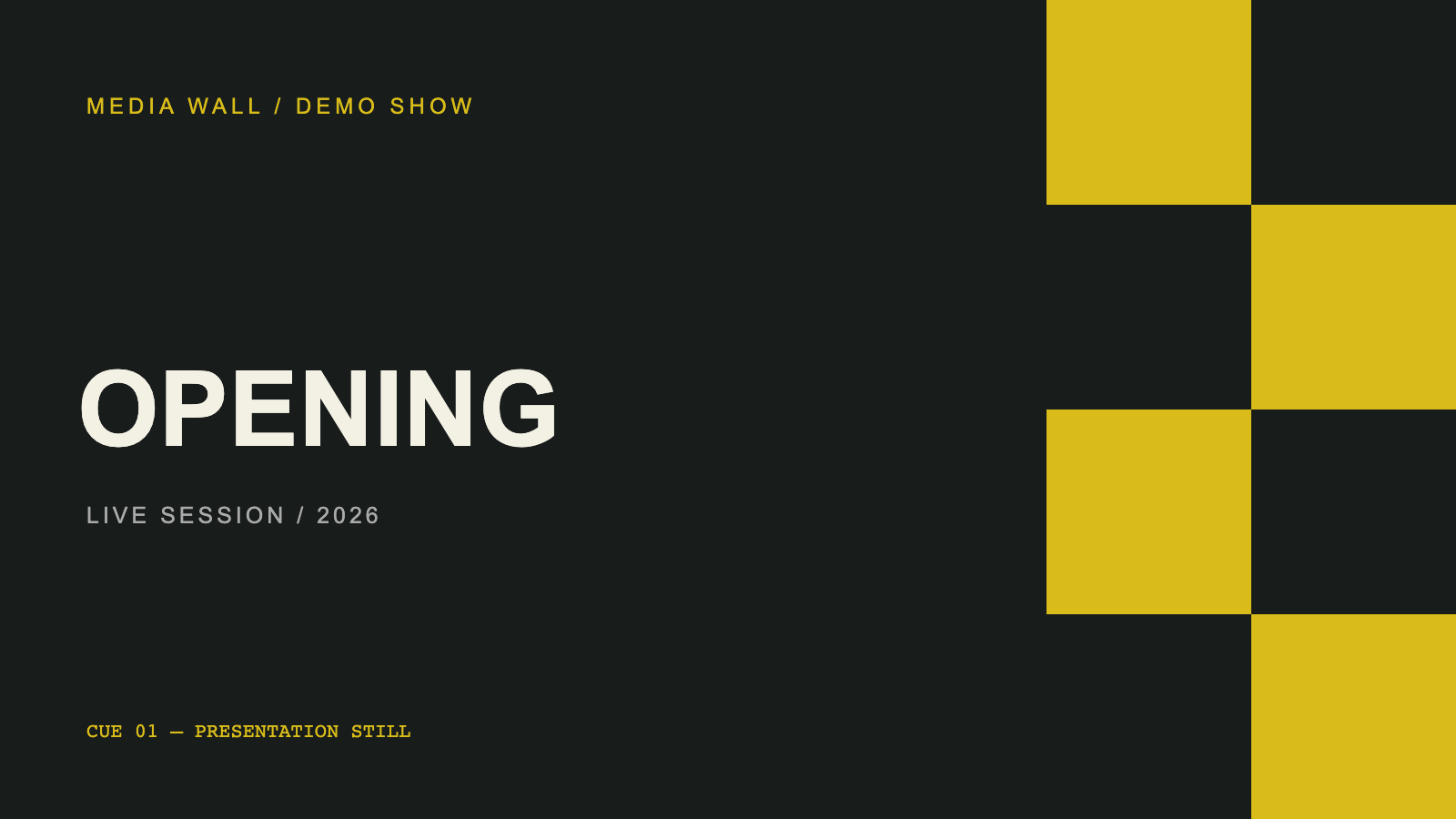
02 / PROGRAM CONTENT↗
Opening still used in the demoYour audience sees the content.
1 Find your media

One grid for videos, audio, images and PDF pages.

2 Set the playback

Use the waveform to choose your start and end points.

3 Watch the output

See the same program content as your audience.

ACTUAL APP · DEMO MEDIA LOADEDVideo + audio + stills · Program-content illustration
30 TILES × 10 SCENESWAVEFORM & IN / OUTPROGRAM MONITORENGLISH / 日本語
01 / A THREE-STEP WALKTHROUGH

Load. Adjust. Show.

A quick visual guide using the current app. Start with your files; finish with a separate audience display.

01 — PREPARE
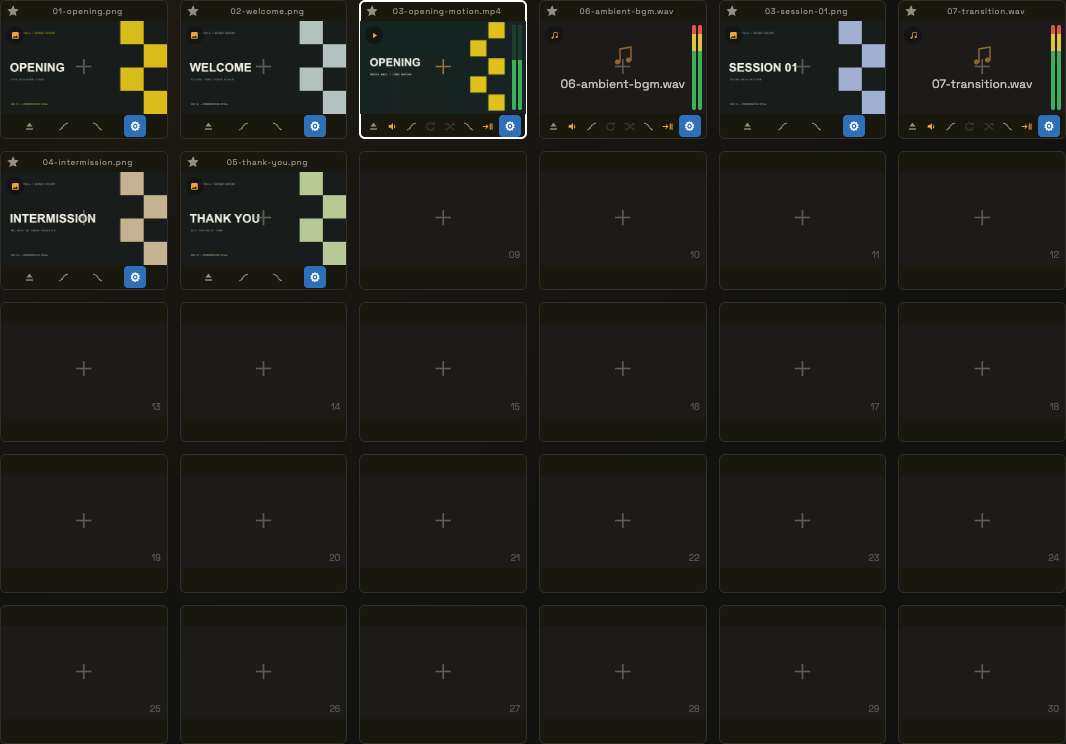
Video, audio and image tiles in the application

Prepare your media together.

Drop multiple files into the grid at once. Arrange them in show order and use tile colors to find the right cue. PDFs become individual page tiles.

02 — ADJUST
Actual audio waveform with start and end markersIN POINT → PLAYBACK RANGE → OUT POINT

Set the part you need.

Set in/out points on the waveform to play just the range you need. Adjust volume and fades for each tile before the show.

03 — OUTPUT
Actual app program preview and playback controls

Keep the output separate.

Move the program-monitor window to your audience display. Your controls stay with you; the on-screen preview mirrors the same program output.

Actual app screenshots with demo media. This is a visual walkthrough, not a recorded demonstration.
02 / CHOOSE YOUR WORKFLOW

How will you run the show?

Take the cues yourself, run a sequence, or get the files ready.

YOU CHOOSE THE MOMENT

Select first. Play when ready.

1 clickSelect onlyDouble-clickStart playback
  • Operate from the keyboardArrow keys move the selection. Space plays or pauses the selected tile.
  • Get the next cue readyAUTO NEXT SELECT moves the selection when playback ends. It waits for you to start the next tile.
  • Keep an eye on the audience outputThe local preview mirrors the program monitor; it does not preview the next cue independently.
Actual playback controls and program preview
ACTUAL APP / PLAYBACK CONTROLS
LET THE SEQUENCE RUN

Build a setlist. Keep it moving.

For a prepared run of media or a repeating display, use automatic setlist playback.

  • Choose the mediaUse the star on each tile to add it to your setlist.
  • Play through automaticallySETLIST PLAY advances through the list. Enable LOOP to repeat the sequence.
  • Know the differenceSetlist playback starts the next item automatically, even with tile end-stop enabled. AUTO NEXT SELECT only moves the selection.
Actual scene buttons and setlist play and loop controls
ACTUAL APP / PLAY MODE
BEFORE THE DOORS OPEN

Keep adjustments with each file.

  • Arrange in batchesDrop multiple files, move groups of tiles, and organize up to 300 tiles across 10 scenes. PDFs expand into page tiles.
  • Set the useful rangeChoose waveform in/out points, volume and fades. Adjust image or video scale for the output.
  • Balance audio levelsNormalize audio-bearing tiles to reduce volume differences. Turn it off to restore previous levels.

End-stop must be off to enable a tile’s loop or crossfade.
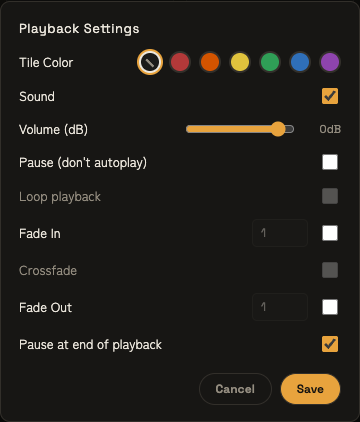
Actual per-tile volume and playback settings
ACTUAL APP / PER-TILE SETTINGS
Keep the controls with you.Move the program-monitor window to your external display. Use black out or white out for transitions.
BUILT FROM THE OPERATOR’S SIDE

A tool made
by someone on the job.

Media Wall was created by a working video operator — and used by its creator on live-event jobs.

The focus is the work itself: organize the files, prepare their playback, and stay in control of when each cue starts.

Developed by helocdesign. Built around the work behind the show.

SMALL CREW. REAL SHOW.

Every room has a stage.

A pop-up exhibition. A gallery opening. A small creative space.
Keep your media close, wherever the next cue takes you.
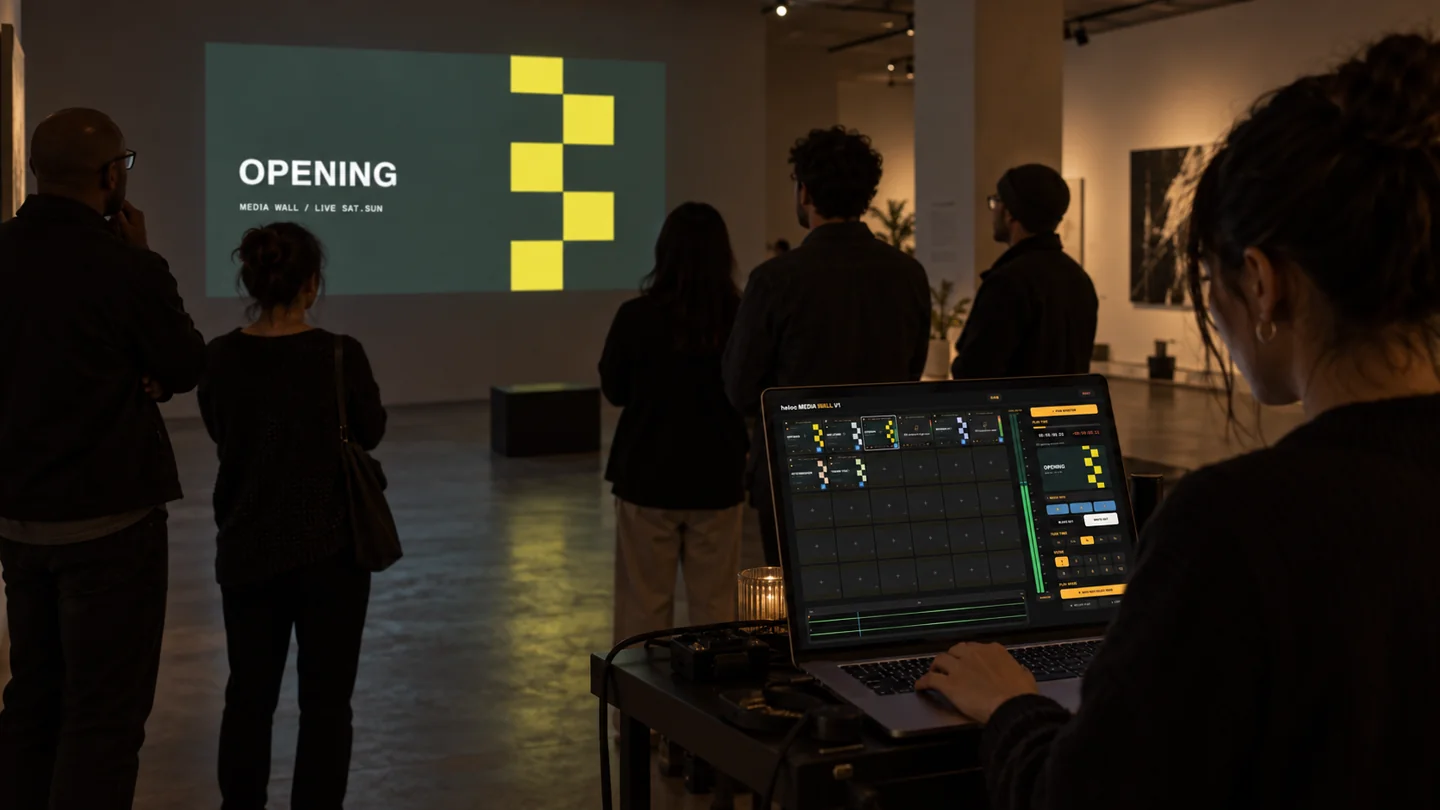
Illustrative gallery exhibition with a laptop operator and matching OPENING graphic on the wall projection
SMALL VENUE / EXHIBITION Illustrative composite · UI details shown in actual screenshots
03 / BEFORE YOU BUY

Check your setup.

Check the playback environment, your media, and the display setup before a show.

仕様欄は提供資料に基づく仮案。対応OS・Mac・コーデックは製品版で検証後に確定します。

Platform
Current build: browser-based HTML app
Final distribution format, supported browsers and operating systems will be confirmed before sale.
Workspace
300 tiles / 10 scenes
Media
Video, audio, still images, and PDF
The manual lists MP4/MOV/M4V, common audio and image formats, and PDF. Codec support depends on the playback environment; the release compatibility list is being verified.
Project storage
Current build saves media and settings in browser storage (IndexedDB).
Storage is tied to the browser environment; it is not a portable project backup.
Output
Separate program-monitor window
Languages
English / Japanese
License
One-time purchase / 1 Mac
Transfer and update terms to be confirmed
FROM THE OPERATOR’S SIDE

At the desk.
In the moment.

DESIGN PLACEHOLDERSFictional names and sample quotes for layout review. These are not real customer endorsements.

LIVE MUSIC / TOURING
“When the running order changes, I want the next clip in sight. Having the media laid out as tiles would fit the way I work at the playback desk.”
Alex Morgan FictionalLive Video OperatorSample profile · Touring productions
CONFERENCES / CORPORATE EVENTS
“Selecting a file without immediately playing it is the kind of detail I look for. I need to prepare the next cue and start it at the presenter’s signal.”
Sofia Rivera FictionalCorporate AV TechnicianSample profile · Conferences & launches
SMALL VENUES / EXHIBITIONS
“On a small crew, I handle several jobs. A prepared setlist on repeat would be useful for an exhibition, with manual playback available for a scheduled moment.”
Daniel Kim FictionalIndependent AV OperatorSample profile · Exhibitions & small venues

Sample copy only · Replace with approved customer feedback before publication.
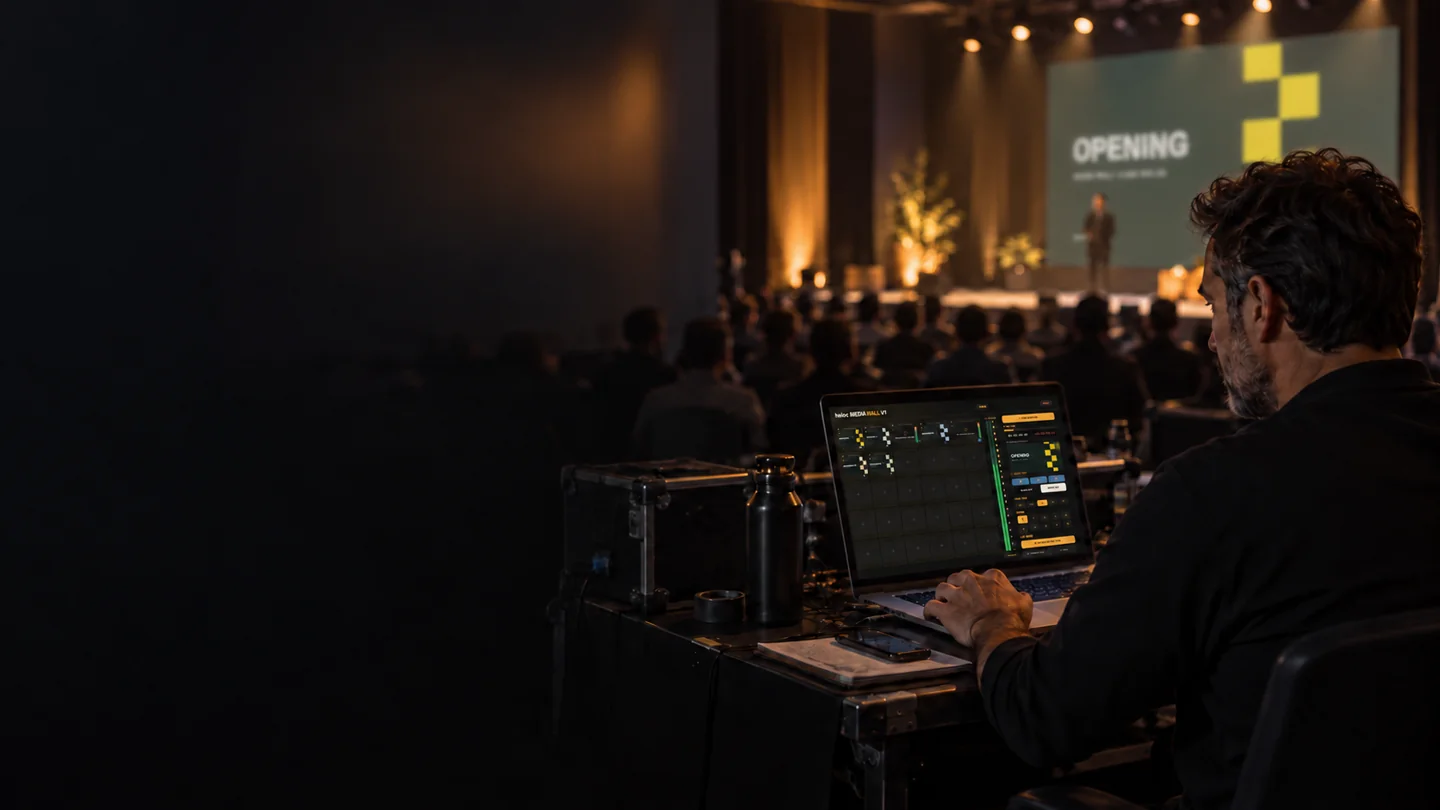
Illustrative operator preparing media at a laptop while watching the stage
FOR THE PEOPLE BEHIND THE SHOW

Your media.
Your next cue.

Prepare the workspace.
Stay close to the show.

Illustrative composite · UI details shown in actual screenshots
04 / GET MEDIA WALL

Make room
for Media Wall.

A focused workspace for preparing and playing your event media.

01
Purchase
02
Download
03
Set up

購入後の導線は構成案です。価格・初期販売枠・サポート条件は検討中です。
このスケッチから購入や決済はできません。

MEDIA WALL

Launch offer

$35 USD

One-time purchase · 1 Mac

License
1 Mac · No expiry for the purchased version
Updates & transfers
Terms to be confirmed before launch
Delivery
Release file & getting-started guide
Packaging and delivery process to be confirmed

Planned regular price: $59 · Launch allocation TBC

05 / SUPPORT

A few things to know.

What is included in the license?

The proposed license covers one Mac and continued use of the purchased version. Transfer, update, and support terms will be finalized before release.

Which media formats can I use?

The current manual lists video, audio, images, and PDF. The compatibility list for the release version is being prepared. Container formats alone do not guarantee codec compatibility.

Can I send video to an external display?

The program monitor opens in a separate window that can be moved to your external display. The control interface stays on your operator screen. Its preview shows the same content as the program monitor, not a separate preview of the next tile.

Sketch preview